Viewing your bills
Your company’s invoices are displayed along with a summary of the information contained within. If an invoice is displaying as ‘unbilled’ in the Invoice Number column it means that the invoice has not yet been issued and is liable to change before the point of delivery. To open the invoice in more detail just click on the invoice number.

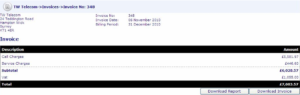
The invoice is then broken down into further detail, as shown in the below image. The call charges and the service charges are shown separately. Both of these, as well as their respective amounts, are clickable fields. From here you can also download the invoice or reports.
Call charges are broken down into categories and call types. You can decide exactly what data is displayed on-screen. In the example demonstrated by the following images ordinary voice calls have been selected, which are then broken down further into more specific call categories.
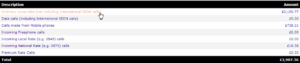
Mobile is then chosen…

The mobile calls would then be broken down by provider or, in the case of international calls, country. You can navigate back one, or as many steps as desired, by clicking on the path bar above the displayed data. This is true throughout the application.
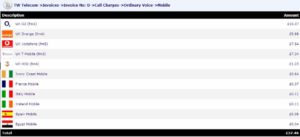
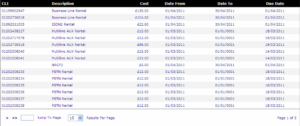
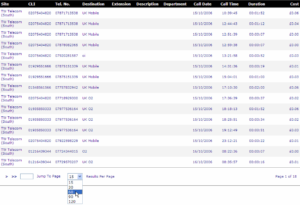
Selecting any of these will provide you with an itemised breakdown of the chosen call type (next image). Depending on volume this may run across several pages, which can be navigated by using the arrows at the foot of each page. The number of data displayed can also be increased (or decreased), using the ‘results per page’ option.
Also from the invoice front page, clicking on ‘service charges’ will give you a breakdown of individual service charges per invoice, and are broken down by frequency.

This example shows a breakdown of the monthly charges: