
HikConnect App Setup iOS
Installing HikConnect App (iOS)
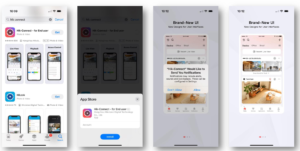
Open the App Store and search for HikConnect.
Tap Get on Hik-Connect for End User then tap install.
Once installed, open the app and tap allow for notifications and critical alerts.
Swipe though the brand new UI examples.
If you are prompted to allow location access, this is not required.
When the prompt comes up, tap agree.
The region should be auto selected, if not select the appropriate country.
Tap Login/Register
Enter your details if you have them, otherwise tap register
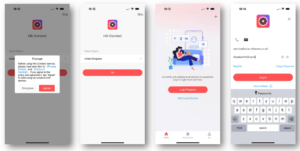
Enter your email address and a password, then tap get security code.
On the next screen, it will prompt you for a security code which will have been sent to the email address you used previously, then tap finish.
You will then be prompted to setup Face ID authentication. This is optional and not required.
If this is a new account, the next screen will ask you to add a device.
At this stage, call or email us and we will grant you access to the cameras with your chosen email address.
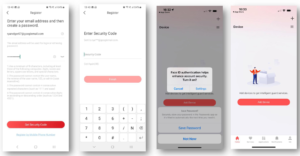
Once we have shared the cameras with you, you may need to force quit the app to get the new sharing(s) pop up. Once this comes up, press View Now.
Under the devices shared screen, tap accept.
You will then be prompted if you want to allow the app to find devices on the local network. Tap Allow.
You will then be presented with your cameras. To begin live streaming, tap one camera and enter the encryption code.
This would either of been provided by the engineer that completed the installation or a member of the Sirus Support team.
The App is now set up.