VT924 Guide
This guide will walk you through the basics of operating your new phone. All three models have the same screen, buttons and menu.
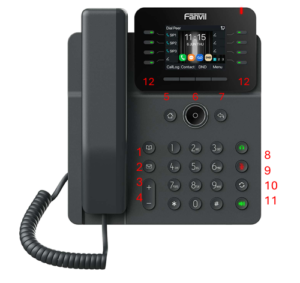
Button Layout
1. Address book/contacts
2. Voicemail for extension
3. Volume up
4. Volume down
5. Home
6. Menu (centre) and navigation
buttons
7. Back
8. Headset
9. Microphone mute
10.Redial
11.Speakerphone
12.BLF keys
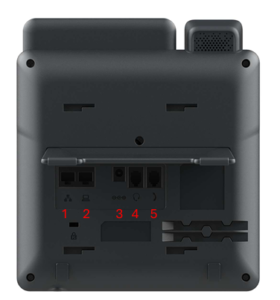
This is the rear of the phone.
1. Network port (PoE)
2. Network port –PC passthrough
3. Power socket 5v DC
4. Headset port (RJ9)
5. Receiver port (RJ9)
The V62W model also has built in Wi-Fi and Bluetooth, but not the G and Pro models
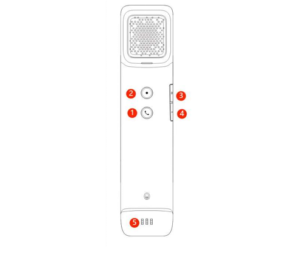
The V62 Pro has a wireless receiver. Itcharges by sitting on the phone body
1. Phone button. Press once to answer a call, double press to reject/hang up.
2. Programmable Button
3. Power socket 5v DC
4. Volume down
5. Volume up
The volume buttons will alter the ring volume when not on a call.
This is the home screen for the V62
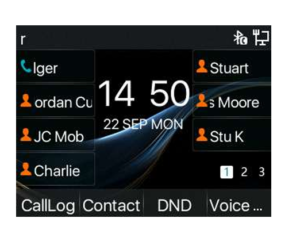
One the left and right sides are your BLF keys. The buttons to the side of the screen illuminate, indicating the status of the extension. They can also be used to quickly call a colleague. Green indicates the user is available. Red indicates the user is on a call or is on do not disturb (DND). Flashing red means the users phone is ringing. To pick up the call lift the receiver and press the button. Along the bottom you have the CallLog, Contact, DND and Voice Mail buttons. You can use contact for local contacts on the phone, DND to enable Do Not Disturb and Voice Mail
to access your messages.
 Company Directory
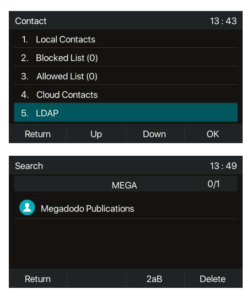
Press the address book button on the phone. Use the navigation keys to select LDAP and then press OK or centre button. You can then use the number keys to type in a name to search. Find the person you want to call, then use the navigation keys and centre button to start a call.
Call Screen
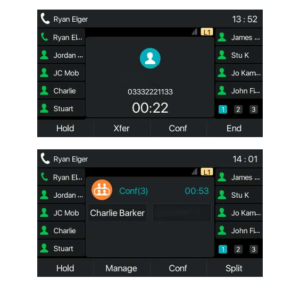
This is the call screen for the V64/V65phones, but the V62 series will look almost identical. To put a call on hold, press the hold key. To transfer a call, press the Xfer key and then the appropriate BLF key on the side of the screen. Then press dial. When your colleague answers, hit Xfer again to transfer the call. If they do not want the call, tap end and then resume to go back to the caller. To start a conference call, press Conf, the BLF key of your colleague and when they answer, press Conf again to start the conference. You can press Split to split the call and conf to add more members.
Menu
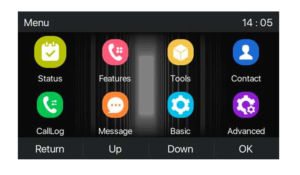
This is the call screen for the V64/V65 phones, but the V62 series will look almost identical. To access it press the menu (centre) button on the phone. Status and Tools are where you can see the status of the phone. Only usually used if you need support. Features contains various call features like auto answering. The contacts button is another way of getting to the address book. CallLog is a call log. Message isn’t used. Basic is where you can set your ring tones, configure Wi-Fi and Bluetooth. Advanced is only used by Sirus engineers.
Basic Menu and Wi-Fi Connection
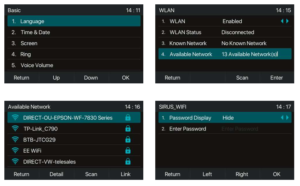
Go in the menu and select basic. You can adjust your screen settings like brightness here, along with your ringtone here. You can also connect to Wi-Fi. To do so, scroll down to WLAN and then press the centre button. Set WLAN to Enabled, and then press OK. Scroll down to available networks and press enter. Select your Wi-Fi network and press Link. Enter the Wi-Fi password using the keys on the phone. If helpful, you can change Password Display to Show. Please note that call quality on Wi-Fi cannot be guaranteed.
Bluetooth Connection
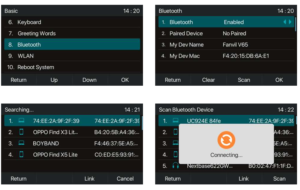
Go in the menu and select basic. Scroll down to Bluetooth and press OK. Set Bluetooth to Enabled and press OK. Press scan to look for Bluetooth devices. When you find your device, select it and press link. Follow any further prompts such as passcodes. If you have issues connecting your device please consult the manufacturers documentation.
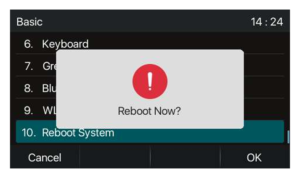
Reboot
Should you need to reboot the phone, go into the menu, basic and then scroll to the very bottom and select reboot phone. When prompted to reboot, press OK