
How to make a call with ViCTUS Desktop App

When you click on the Phone icon, the following screen will appear:
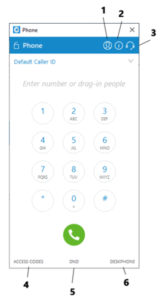
- Hide Caller ID – Here you can select if you want to hide your Caller ID for all calls or just the next call
- Registration Status – This shows you the status of the app
- Audio Preferences – Gives you the option to select which audio device you would like to use (e.g. headphones, computer speaker etc)
- Access Codes – A list of access codes or shortcuts for carrying out certain functions (call forward, voicemail etc)
- DND – Turn on do not disturb
- Select Device – Select between your desk phone, mobile APP or desktop client
To start making a call, simply enter the number and select the call button
When the call is live the following screen will be displayed:
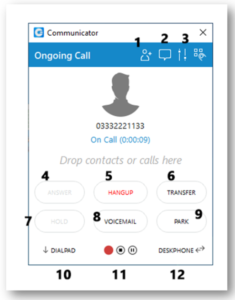
- Invite people – Here you can invite more people in to the call, similar to a conference
- Group chat – While on a call you can start a group chat with other colleagues
- Volume – You can adjust the volume of the headset
- Answer – Select to answer an inbound call
- Hang up – Hang up the call
- Transfer – Transfer the call to another extension.
- Hold – Put the caller on hold
- Voicemail – When you receive an incoming call you can direct people to your voicemail
- Park – Park an inbound call
- Dialpad – Show the dial pad
- Call record – By default all calls are recorded. Here you can stop or pause the current recording
- Device switch – Switch in between devices
This is everything you need to know about making a call with the ViCTUS Desktop app.